🚀 Novedad: Copiloto Legal con IA y Web de Captación ya disponibles. Descúbrelos

Introduction to Case Files

Case Management Manual

Lexdigo Case Dashboard

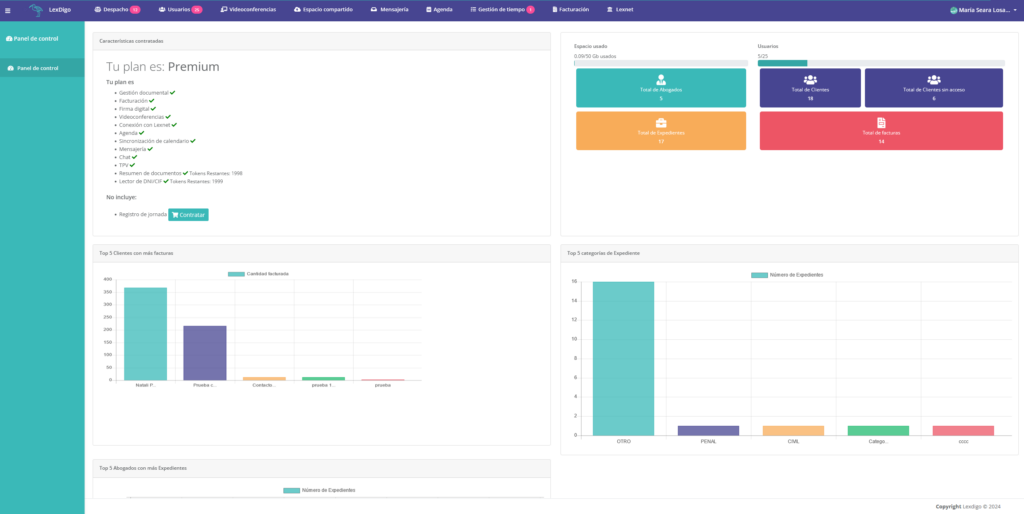
Verifying Statistics in LexDigo

When you enter our platform, you will be able to review the different groups of statistics on the cases managed in your instance. This feature will allow you to maintain detailed control of all cases, making it easier to make informed decisions and improving management efficiency.

Case File Management Functionality

In LexDigo, we have developed a case file management feature with the aim of optimizing organization. This tool, detailed in the Case Management Manual, is designed to help you keep all documents, deadlines, and case details perfectly organized. In this way, we simplify day-to-day work and reduce the risk of errors, improving your firm’s overall efficiency.

Tool Setup and Use

Below, we explain how to set up and use this tool so you can maximize its potential. With these steps, you will be able to manage your case files effectively, ensuring a more organized workflow and proper follow-up for each case. The Case Management Manual will guide you through all available options to tailor the tool to your firm’s specific needs.
1. Case File Organization

We will go to the “Firm” section.

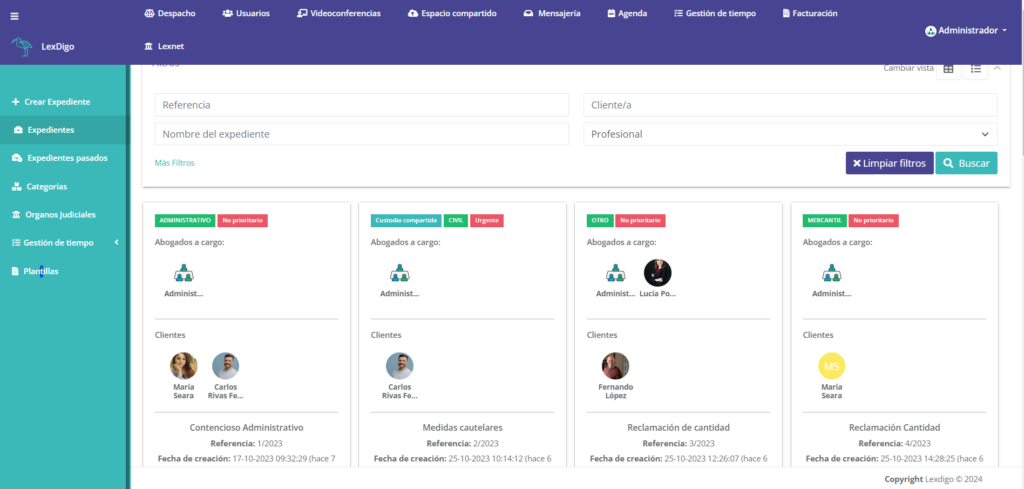
Upon entering, we will be able to view the case files available in our instance.

Case Management Manual, Case Management

By clicking “Enter” on a case file, we will access the “Details” tab, where we can see various options such as case file information, process details, and activity. If we wish to edit any data related to the case file, we can do so using the “Edit case file details” button.

You will also find the following tabs:

  • Files: where all documents related to the case are uploaded.
  • Document signing: where documents requiring a signature are uploaded, whether from the lawyer, the client, or both parties.
  • Communication: where all emails sent from the platform will be displayed, along with a chat to interact with the client.
  • Billing: where all estimates and invoices corresponding to that case will appear.

Once the case files have been created, we will be able to actively collaborate with colleagues on preparing the case.

Case Management Manual

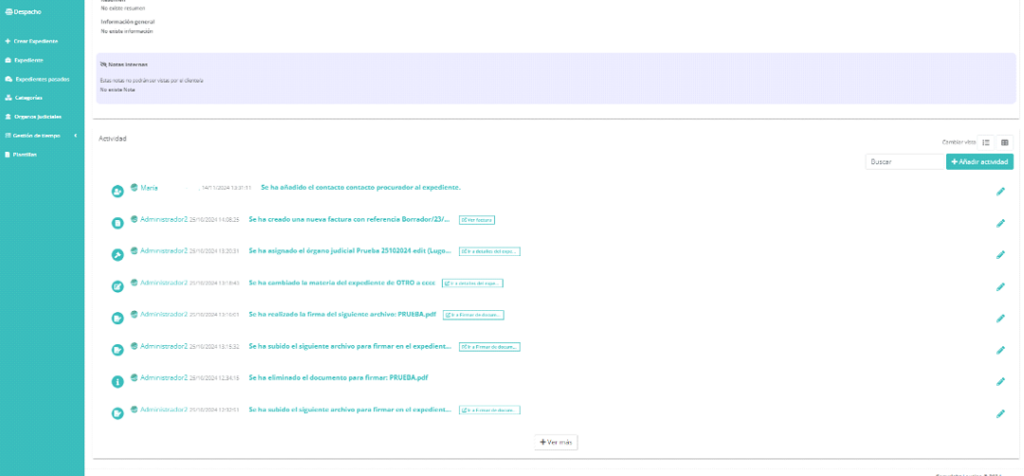
In “Activities” within a case file, we can see the different edits made and which user carried them out, facilitating active and smooth collaboration among lawyers, court agents, and collaborators.

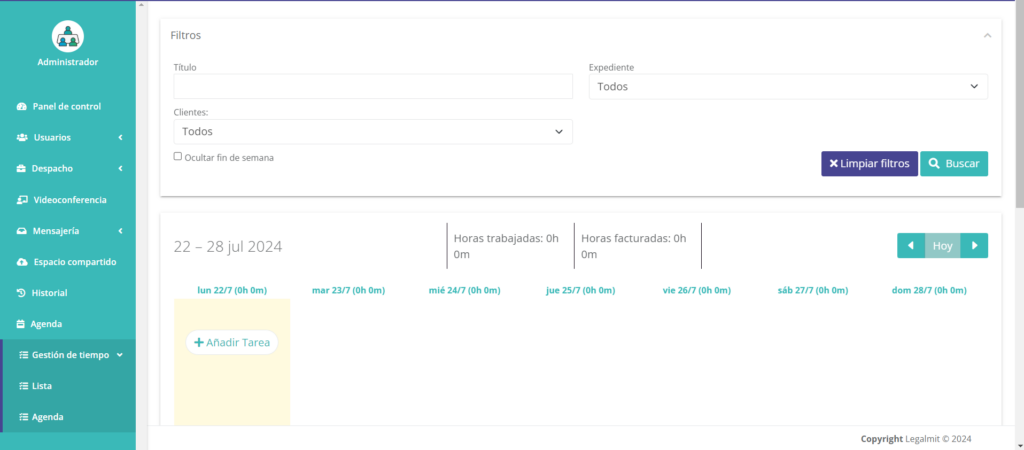
Access to Time Management

Case Management Manual

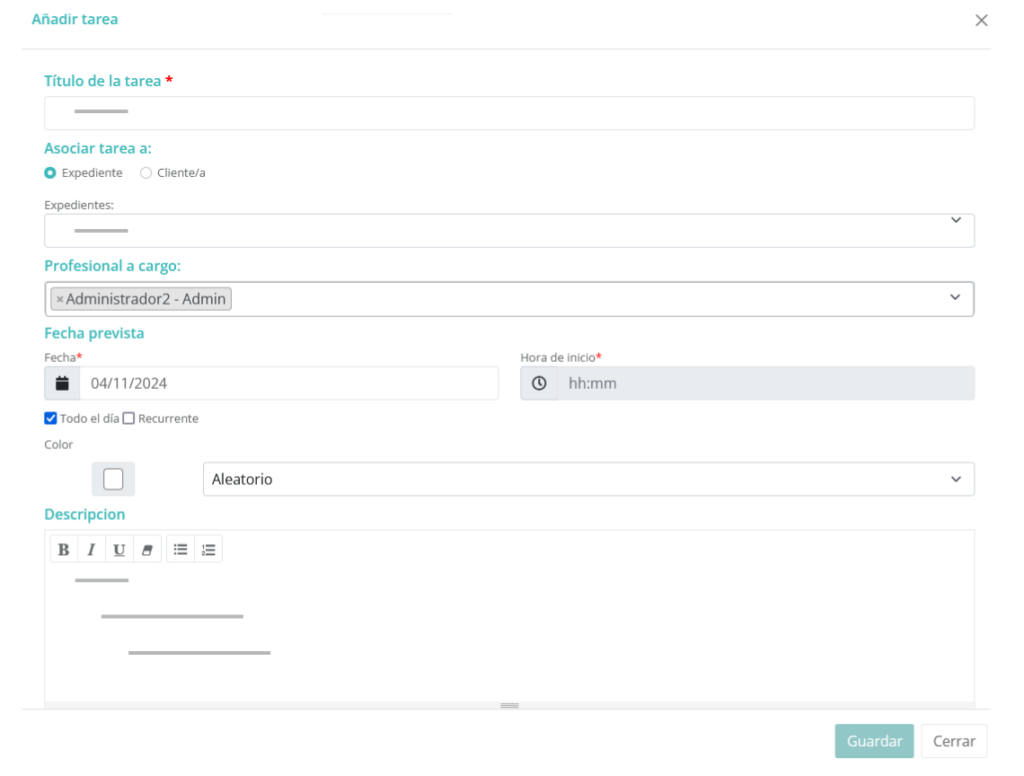
Creation of tasks that may or may not be associated with a case file or client.

Case Management Manual

Recurring Task Management

In LexDigo, you can manage recurring tasks flexibly by setting their frequency at daily, weekly, monthly, or annual intervals. This capability will allow you to adapt them to your firm’s needs and ensure they are always completed on time. For more details on how to configure and customize these tasks, consult the Case Management Manual.

Task Billing Options

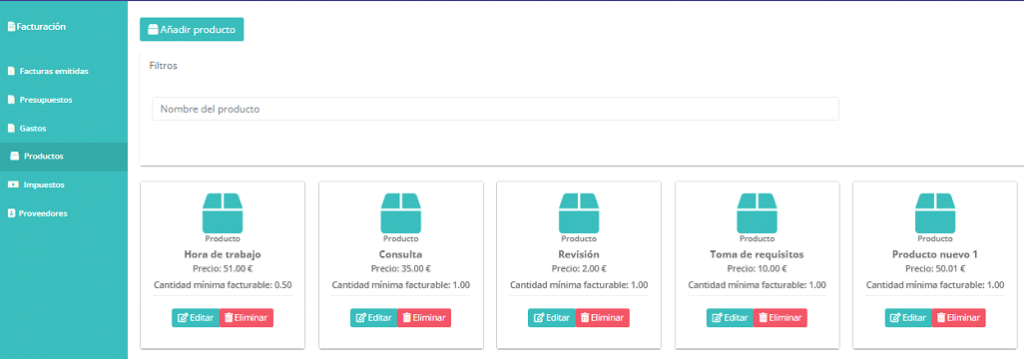
Tasks can be billed by the hour or per unit, depending on your preferences or your client’s. In addition, if you prefer, you can choose not to bill it, giving you full control over the costs associated with each task. The Case Management Manual provides detailed information on how to manage task billing efficiently and in line with your needs.

Pausing and Resuming Tasks in the Case Management Manual

One of the most notable advantages is the ability to pause the task at any time, both within it and outside it, and continue it later. This provides flexibility and makes it easier to manage tasks without interrupting workflow. This functionality is clearly explained in the Case Management Manual, so you can make the most of it.

Review and Control of Completed Tasks in the Case Management Manual

When you access the task again, you will only need to click “View details” to review the recorded time and decide whether you want to bill it or take other actions. In this way, you will have full control over the management and billing of each task, as detailed in the Case Management Manual.

Automation in the billing process, with fixed prices and a minimum quantity for billing, makes it easier to create invoices.

Case Management Manual

Remote Access to Your Case Files in LexDigo

At LexDigo, we want you to be able to access your case files easily and securely from anywhere and on any device. Thanks to our platform, you will enjoy the flexibility to manage your cases efficiently, no matter where you are.

Flexibility of Access from Different Devices

Our platform allows remote access from your computer, tablet, or mobile phone. This means that, whether you need to consult a document or manage any aspect related to your cases, you will always be able to access your instance at any time and from any device. In addition, we have optimized the user experience for each type of device, ensuring smooth and efficient navigation.

Data Protection in LexDigo in the Case Management Manual

Protect your data with the industry’s best security practices. At LexDigo, we are committed to ensuring maximum security for our users’ information by implementing the most advanced measures to protect your data.

Compliance with Regulations and Advanced Security Measures

At LexDigo, we comply with the most stringent security regulations and apply advanced measures to protect your information. For example, we use data encryption and perform regular automatic backups, giving you peace of mind that your data is always safe.

Este sitio web utiliza cookies para que usted tenga la mejor experiencia de usuario. Si continúa navegando está dando su consentimiento para la aceptación de las mencionadas cookies y la aceptación de nuestra política de cookies, pinche el enlace para mayor información.plugin cookies

ACEPTAR
Aviso de cookies
Lexdigo User Manual
Lexdigo User Manual